How to use ExeDock
From download to playing in about three minutes.
Download and install
Download ExeDock, open the disk image and drag ExeDock into Applications. If you open it from elsewhere, the app offers to move itself there.
Add a game
Drag the game folder (or its EXE) into ExeDock, or click “+” at the top right. The game stays where it is.
Choose a compatibility mode
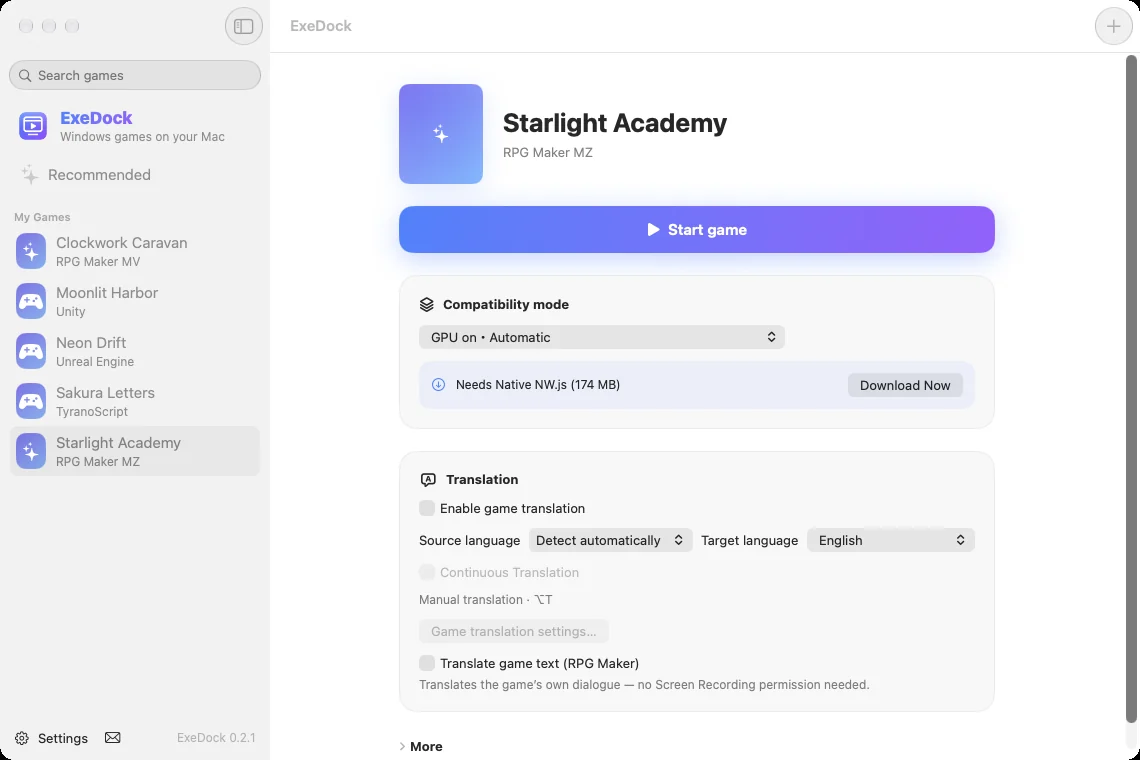
The game page lists the available modes and highlights officially tested settings. Modes that need a download show the size, and you can click “Download Now” ahead of time.
Play
Click “Play”. The first launch prepares the environment; after that it’s one click. While playing, the sidebar shows a green dot and your play time.
Translate the game
For RPG Maker MV/MZ turn on “Translate game text” and dialogue is translated in the game; for other games press ⌥T to translate the current screen.
If something’s wrong
If picture or sound isn’t right, try another compatibility mode. You can also click “Report a Problem” to send us a message with your app and game settings attached.